Have you already purchased a travel eSIM and started the installation process, but are running into activation issues? Even if a new line appears in your SIM list, it doesn’t necessarily mean the setup has been completed.
Sometimes activation can fail due to minor technical issues. In most cases, the problem is caused by incorrect smartphone settings. The good news is that you can often fix it yourself in just 2–3 minutes. To do this simply check three key settings on your Android device or iPhone
Step 1: Check the Cellular Data Line
This check is relevant if you are using two SIM lines at the same time: 1 eSIM + 1 physical SIM or eSIM + eSIM. Sometimes activation may get stuck because your iPhone tries to complete the process using the mobile internet from another SIM/eSIM, while the newly added line does not receive access to data.
What you need to do on iPhone:
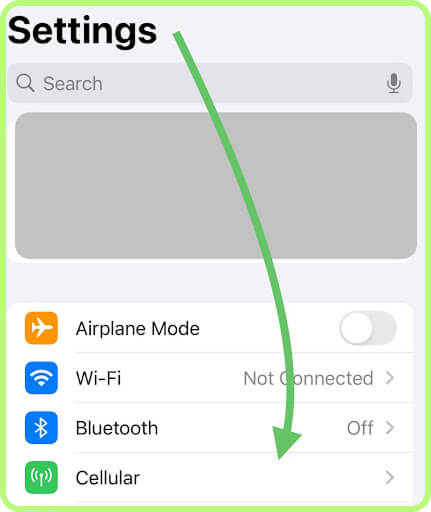
- Open "Settings".
- Go to "Cellular".
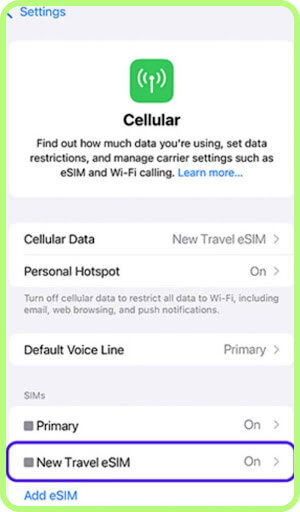
- Tap "Cellular Data" (this step may not appear in some iOS versions).
- Check which line has the checkmark next to it (in some versions, it may appear as “On” instead)
For example, if the checkmark is next to TooSIM eSIM, it means this line is currently used for mobile data and the activation issue is likely not related to this setting.
Important: If another SIM is selected (for example, your home SIM), try switching "Cellular Data" to the travel virtual SIM and wait a few minutes for the activation to complete.
What you need to do on Android (Samsung, Xiaomi, Huawei, or another brand):
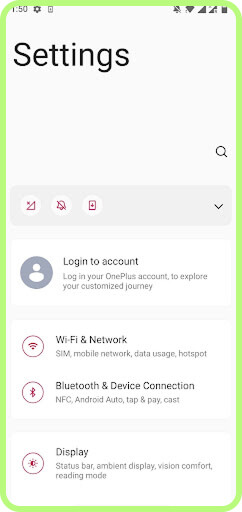
- Open "Settings".
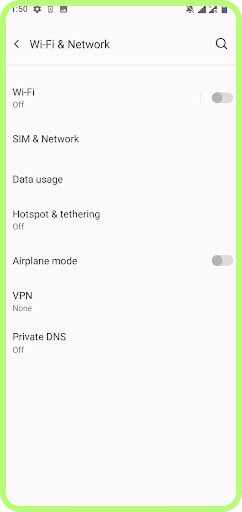
- Go to "Network & Internet"/"Connections" (the name may vary depending on the device).
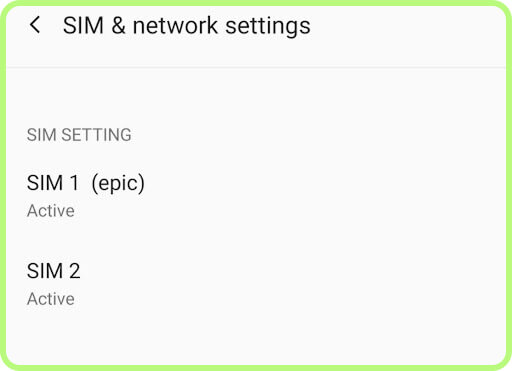
- Tap "SIMs"/"Manager"/"SIM & Network".
- Find the "Mobile Data”/"SIM & network settings”.
- Check which SIM is currently selected for mobile mobile data. Make sure it is your new travel eSIM (”active”).
Make the necessary changes, if needed, and exit "Settings". If the TooSIM line was already selected, simply proceed to the next troubleshooting step.
Step 2: Check Mobile Data
The eSIM profile may already be installed, or the activation process may still be in progress. In any case, if mobile data is turned off on your device, the line may not be able to connect to the network or complete the activation process.
What you need to do on iPhone:
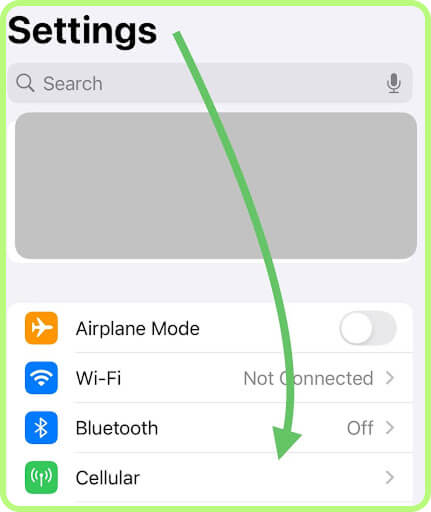
- Open "Settings".
- Tap "Cellular" (it’s one of the first options in the list).
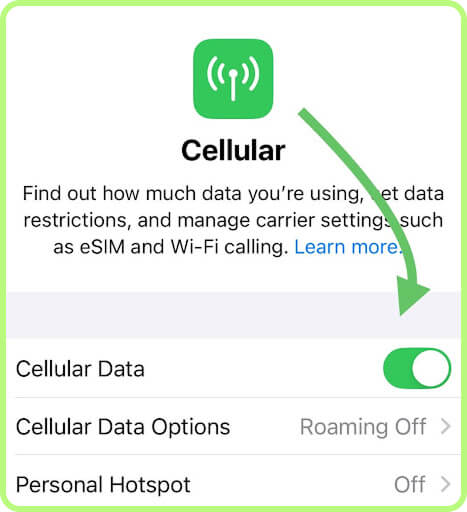
- Find the "Cellular Data". Verify that it’s active. In some iOS versions, you may instead need to choose the name of your new travel virtual SIM.
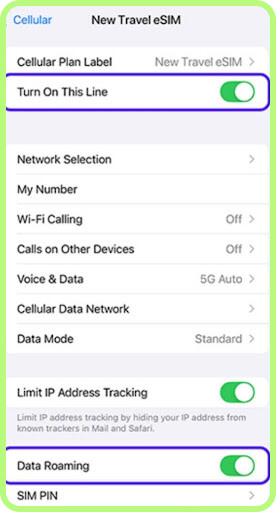
Additionally: In the SIM list, select your new travel eSIM and make sure it is enabled ("Turn On This Line"). Also check that "Data Roaming" is enabled for this line.
What you need to do on Android:
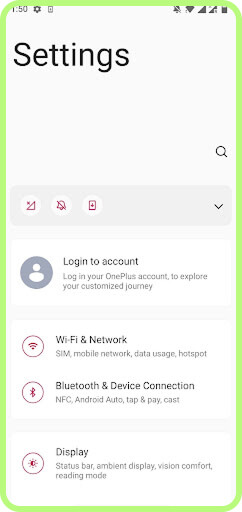
- Open "Settings".
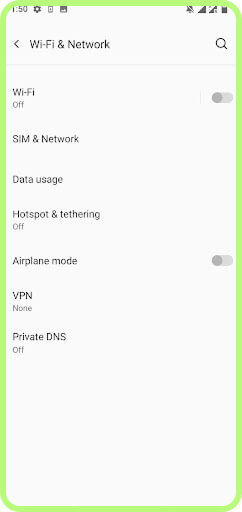
- Go to "Wi-Fi & Network" or "Connections".
- Tap “Mobile Network”/«SIM Manager” (Samsung, Huawei)/ “SIMs” (Pixel)/“SIM & Mobile Network” (Xiaomi).
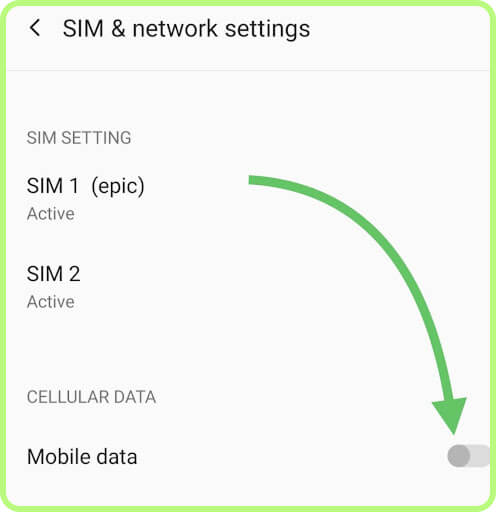
- Make sure the "Mobile Data" toggle is turned ON.
Additionally, as with iPhone, select the TooSIM line and make sure it is enabled and that Data Roaming is turned on.
Step 3: Check the APN
During the eSIM profile download, a technical issue may occur that prevents the APN settings from being configured automatically. In this case, you will need to enter them manually.
On your iPhone do the following:
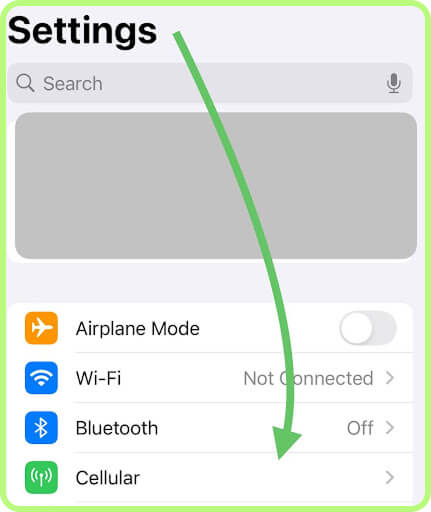
- Open "Settings".
- Go to "Cellular".
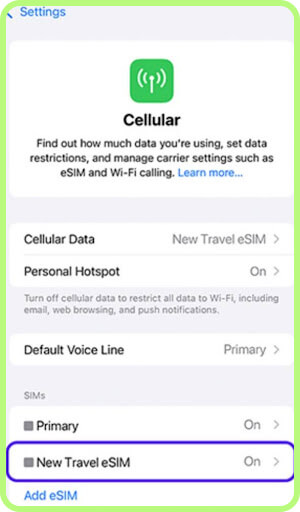
- Select your travel eSIM from the list (TooSIM, Secondary, Travel, etc.).
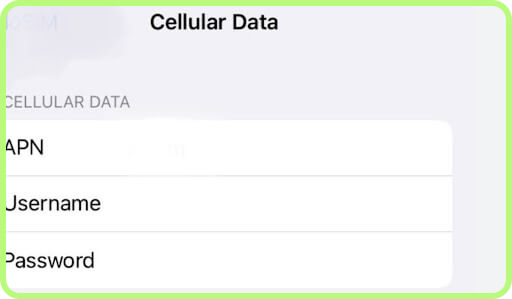
- Tap "Cellular Data Network".
- Check the "APN" field.
Only the first field (APN) is important in this case. If it is empty, enter data.esim manually.
What you need to do on Android:
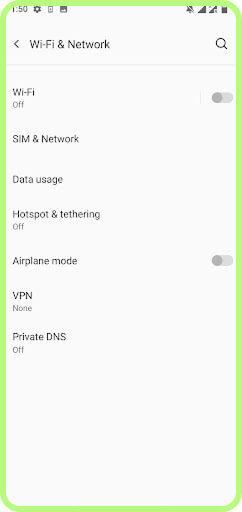
- Open "Settings".
- Go to "Connections" (in certain versions it may be labeled “Wi‑Fi & Network”)
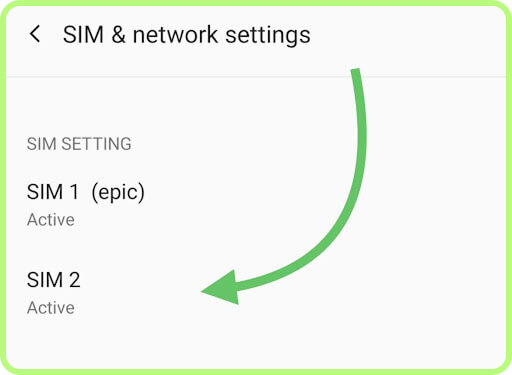
- Tap "Mobile Network" ("SIM & Network"/"SIMs").
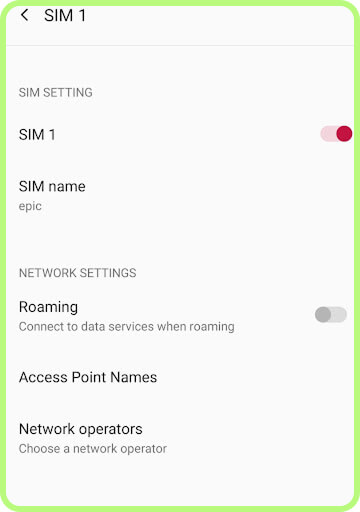
- Select your travel eSIM from the list (TooSIM, Secondary/Primary, Travel etc.).
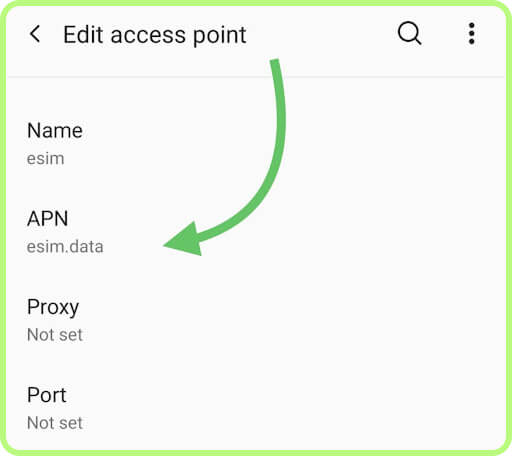
- Tap "Access Point Names" or "APN".
- Check the "APN" field.
You only need to fill in the APN field. Enter data.esim there. Leave the other fields, such as Username and Password, empty. Close the settings and wait a couple of minutes.
Conclusion
Usually, checking these 3 settings (the Cellular Data line, APN, and mobile data access) resolves the activation issue in about 90% of cases. The changes should take effect immediately and the activation should complete. However, you can also try restarting your smartphone.
If the problem persists, we recommend contacting the TooSIM support team. You can do this via WhatsApp or through the contact form in our app or on our website.