You can install a travel eSIM on most modern Samsung smartphones (Galaxy S, Galaxy Note, Galaxy Z Flip, Galaxy Z Fold series). First, you need to choose a plan and make a purchase through the TooSIM website or the mobile app, available on Google Play. The next step is the installation, which you can easily complete through your phone’s «Settings».
Below, we provide step-by-step instructions with tips to avoid common issues, and a list of supported models.
Can You Install an eSIM on a Samsung Smartphone?
Most modern Samsung smartphones come with a built-in eSIM chip, which allows you to activate an eSIM plan. So yes, you can purchase any TooSIM tariff and activate it using a QR code. A list of supported models is provided in the table below. Check it before making a purchase.
| Model Type | Models |
| Galaxy S | S20, S20+, S20 Ultra, S21, S21+, S21 Ultra, S22, S22+, S22 Ultra, S23, S23+, S23 Ultra, S24, S24+, S24 Ultra |
| Galaxy Note | Note 20, Note 20 Ultra |
| Galaxy Z Flip | Z Flip, Z Flip3, Z Flip4, Z Flip5 |
| Galaxy Z Fold | Z Fold, Z Fold2, Z Fold3, Z Fold4, Z Fold5 |
eSIM Setup Guide for Samsung Phones
This guide is universal and applies to all modern Samsung models, but the names of the sections may vary slightly depending on your OS version. After completing your purchase, open «Settings» on your smartphone. The next steps are:
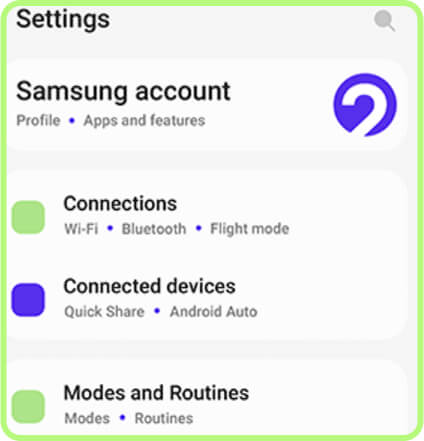
Run to «Connections».
Select «SIM manager» (in some versions of the OS, this section may appear as «SIM card manager»).
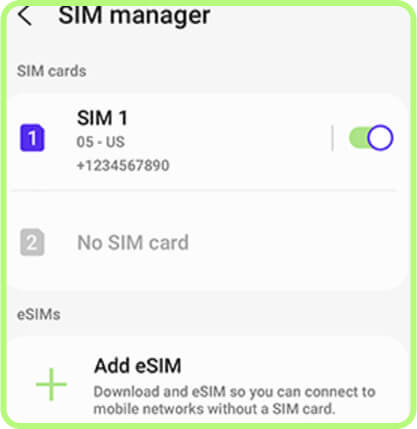
Tap on «Add eSIM».
Choose «Scan QR code from service provider», then point your phone’s camera at the code on another device. You can find the QR code in the confirmation email you provided during purchase or in your personal account on the TooSIM website or app.
If you can’t scan the code, select «Enter code instead» and put the details manually. All the required information is available under the «Active» tab in your TooSIM profile.
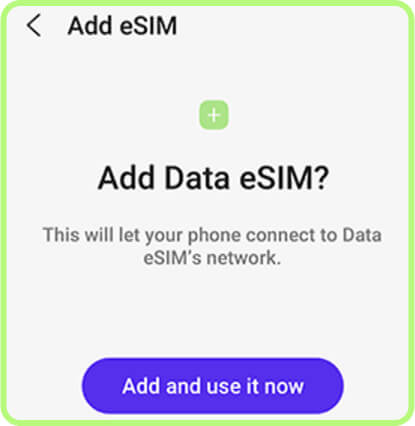
Choose «Add and use it now».
At this point, you’ve added the eSIM digital profile to your smartphone, but to go online you also need to turn it on.
If you install your virtual SIM in advance at home, you can wait to complete the following steps and only do them once you arrive in the new country.
Here’s how:
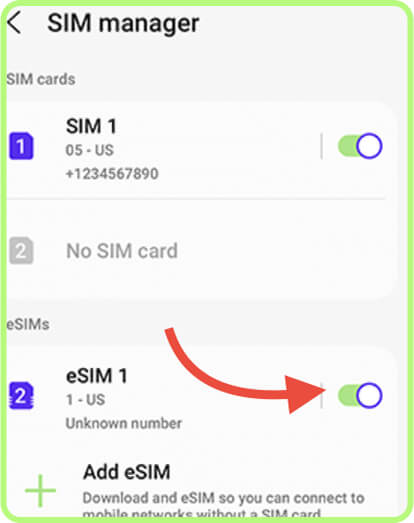
Open «SIM Manager»/«SIM card manager» again, select your new travel eSIM, and switch it to «On».
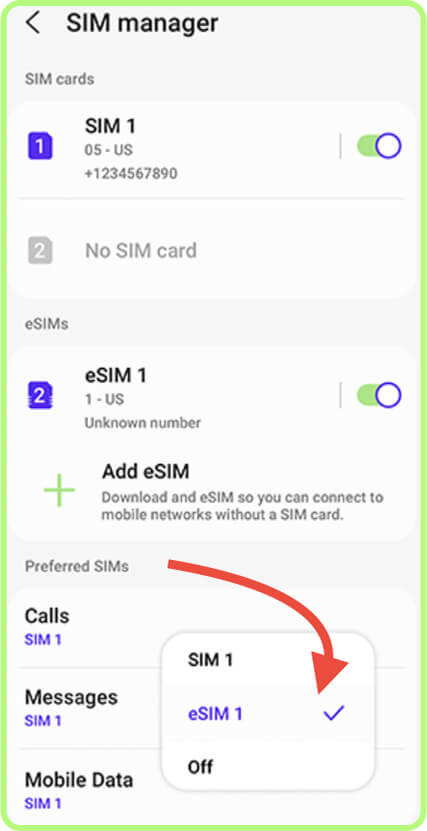
Below, you’ll see the «Preferred SIMs» section. Tap «Mobile Data» and select your new travel eSIM from the available options. It is often labeled as number 1.
Open «Connections» again, select «Data Usage», and switch «Mobile data» to On.
Next, you need to enable roaming so your phone can connect to networks abroad. How to do it:
- Go back to «Connections».
- Open «Mobile Networks».
- Activate «Data Roaming».
Manual APN Setup on Samsung smartphones
Access Point Name (APN) is essentially the «key» that allows your smartphone to connect to the network. Usually, these settings are applied automatically when you activate your eSIM. However, if you’re already in another country and still don’t have internet access, it means something went wrong and you need to configure the APN by hand.
Important: All the steps below should be performed after you have activated and turned on your eSIM.
Here’s how to do it:
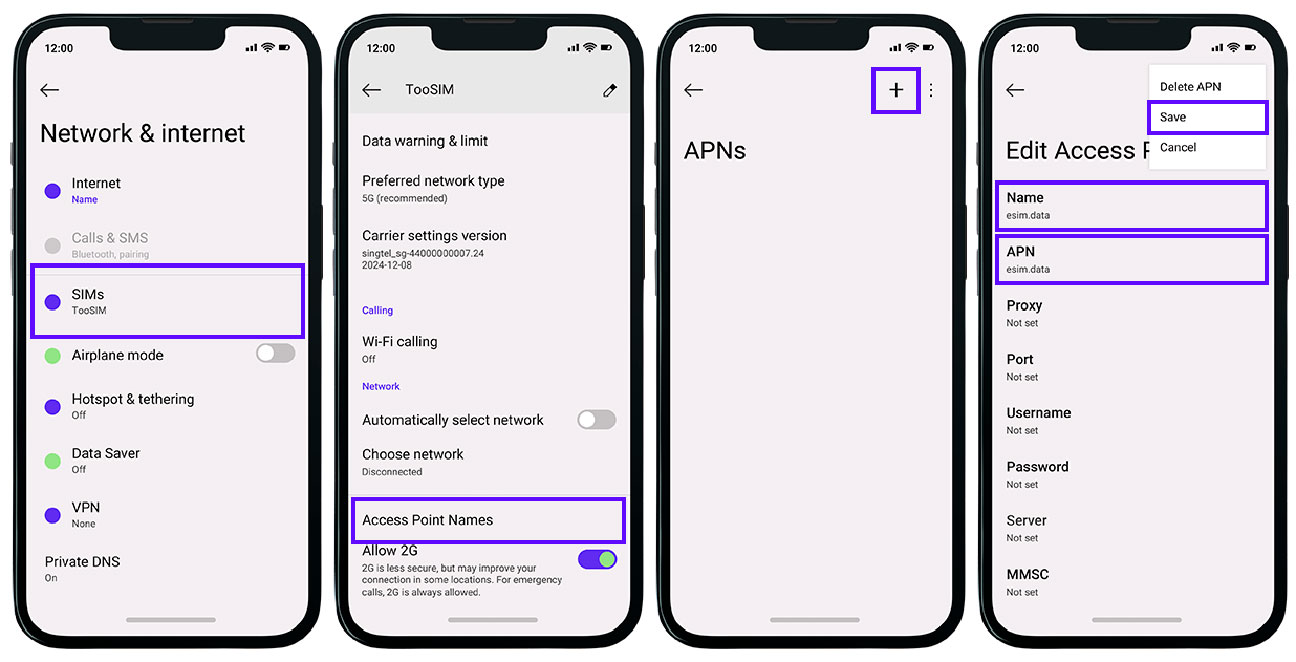
- Open «Settings» and go to «Connections».
- Select «Mobile Networks».
- Tap «Access Point Name».
-
Create a new APN. Enter the following settings: Name – eSIM, and APN – esim.data. You can leave the other fields blank.
- Save the changes.
- Restart your smartphone to apply the new settings.
Note: If you still don’t have internet access after this, you’ll need to contact TooSIM customer support. You may need to enter different APN settings.
Conclusion
If you have a modern Samsung smartphone such as Galaxy S20 or newer, Z Flip, Note 20 or newer, or Fold, you can easily install a travel eSIM from TooSIM for any country. To use it successfully, however, you need to not only activate the eSIM profile via QR code but also enable the eSIM in your settings, allow mobile data usage, and turn on roaming. If you run into any issues, you can contact TooSIM customer support or follow our troubleshooting guide, where we share solutions to the most common problems.